
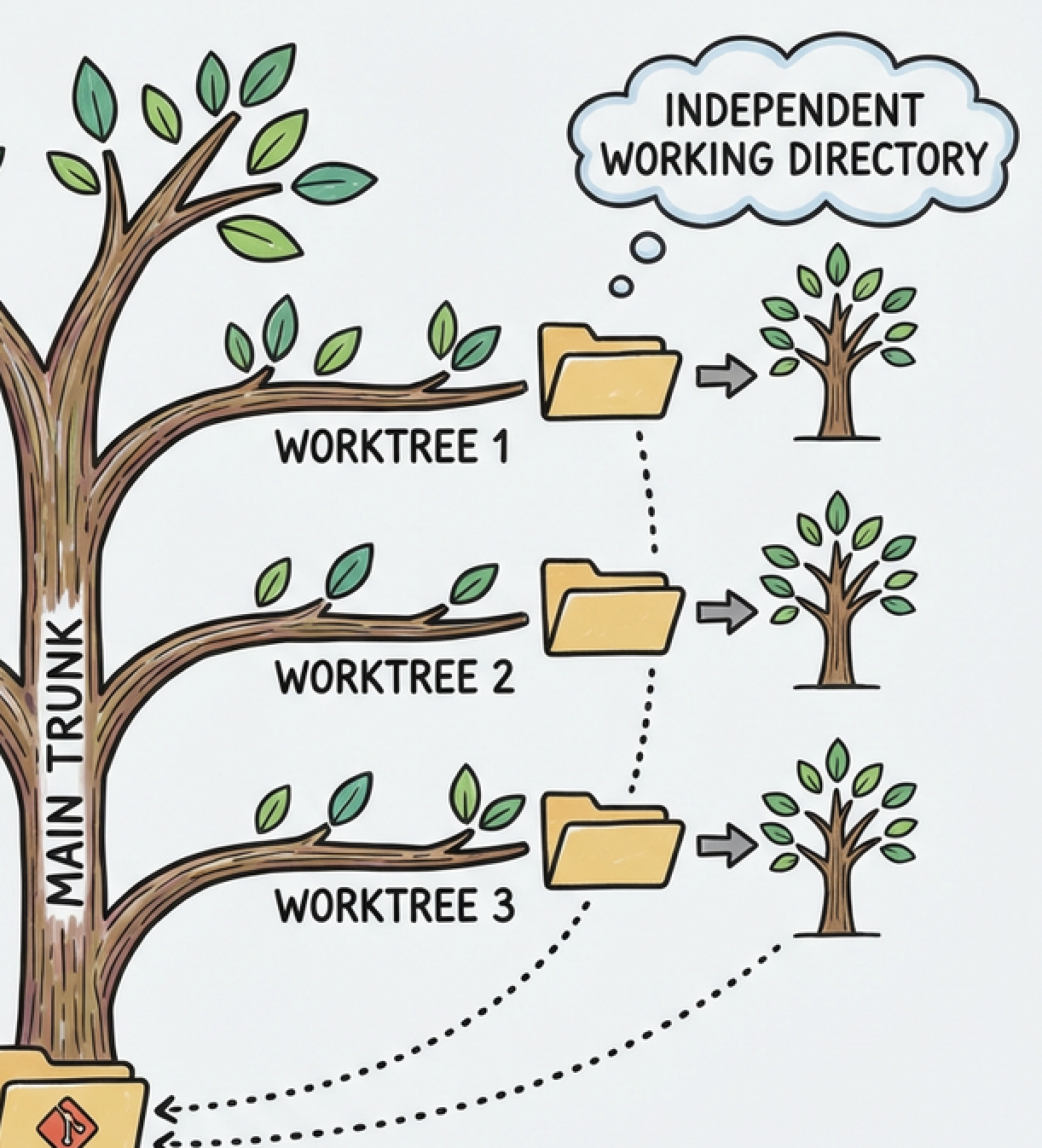
I read a post from a colleague about using git worktrees with an AI agent for data transformations, and it made me think. My first reaction was: why would I want to blow my brain up with multiple worktrees at once? I already struggle enough with staying focused on what I’m doing — actually owning what I build, understanding it deeply, rather than just running things.
Then it clicked.
It’s not only about working on completely different projects. It’s about the fact that when you kick off your tests in a Docker Container — which takes a while — you can keep making progress on something else instead of watching logs scroll by. Or even use worktrees for related PRs that feed into each other. It’s not just about increasing context-switching. It’s about not being blocked while you wait.
What’s a git worktree?
Instead of switching branches with git checkout (and dealing with stashing, losing your open state, etc.), you can create a separate folder linked to the same repo but on a different branch. Two folders, two branches, zero conflicts.
Create a worktree
Super simple
git worktree add worktree-or-task-name feature/folder
You do this once per task. The folder persists until you remove it.
Open separate cursor windows to work with each worktree
Several ways to do this.
Option A – Open a Window from Terminal:
cursor [folder] cursor ~/projects/task-a
Or you first create the worktree :
Raulito-D mainfolder % git worktree list /Users/raulantoncuadrado/git/mainfolder 3a68b9a805 [master]Raulito-D mainfolder % git worktree add -b my_worktree_name my_folderPreparando árbol de trabajo (nueva rama 'my_worktree_name')HEAD está ahora en 3a68b9a805 something or noneRaulito-D mainfolder % git worktree list /Users/raulantoncuadrado/git/mainfolder 3a68b9a805 [master]/Users/raulantoncuadrado/git/mainfolder/my_folder 3a68b9a805 [my_worktree_name]Raulito-D mainfolder % cd my_folderRaulito-D my_folder % cursor .
Heads up! The cursor command isn’t available by default. You need to configure it first. Here’s how. In Cursor:
Cmd+Shift+P- Type “Install ‘cursor’ command”
- Select it

Option B – New Window with Profile.
You can also use File -> New Window. This is cool because you can use the option ‘New Window with profile’ (A saved set of settings, extensions, and theme that you can use for different projects).
Profiles: you can set up a dedicated profile with only some extensions and specific settings, so your Cursor window is lighter and focused. You can use it for different repos,
Worktree Cleanup
When you’re done with a worktree, you can just remove it:
git worktree remove ../task-a
Is it worth it?
If you finish one thing before starting the next, probably not. Regular branches and a single window work fine. But if you find yourself waiting for something to finish — tests, builds, Docker containers — and you want to use that time on something related without losing context… yes. IMO it’s absolutely worth it.
Leave a Reply